
The scenario is common. Lighthouse gives a green score. The page feels responsive on a developer laptop. Then Google Search Console flags the page group as having poor INP, and nobody on the team can reproduce it immediately.
The reason is structural: INP is a field metric. It reflects what real users experience on real devices, on real networks, with real third-party tags loaded and real browser extensions running. Synthetic tests measure a controlled load-phase on an idealized machine. The two rarely surface the same problems.
This guide covers how to move from a poor INP signal in Search Console to a specific interaction, a specific bottleneck phase, and a concrete fix — using field data and DevTools together rather than guessing.
TL;DR
- INP measures responsiveness to real user interactions — clicks, taps, and keyboard events — not page-load speed.
- The metric reflects the slowest interaction observed per page visit, with minor outlier exclusion at large sample sizes.
- CrUX and Search Console detect that you have a problem and which page types are affected. They do not identify the exact interaction or line of code.
- To diagnose the real bottleneck, you need field data with interaction-level attribution — specifically
interactionTarget,interactionType, and the three timing phases. - Once you know the slow interaction, DevTools and trace analysis become effective. Without that, you are guessing.
Before diving into the debugging workflow: a CodeAva Website Audit covers technical SEO and hygiene signals — metadata, HTTPS, crawlability, and security headers — and is a useful starting point for identifying obvious on-page issues before going deeper into performance. The INP workflow below picks up where general auditing leaves off.
What INP actually measures
Interaction to Next Paint measures the latency from when a user interacts with the page — via click, tap, or keyboard — to when the browser is able to paint the next frame in response. It is not a page-load metric. It can fire at any point during a session: while the page is still hydrating, thirty seconds after load, or during a complex multi-step flow.
Each interaction has three measurable phases:
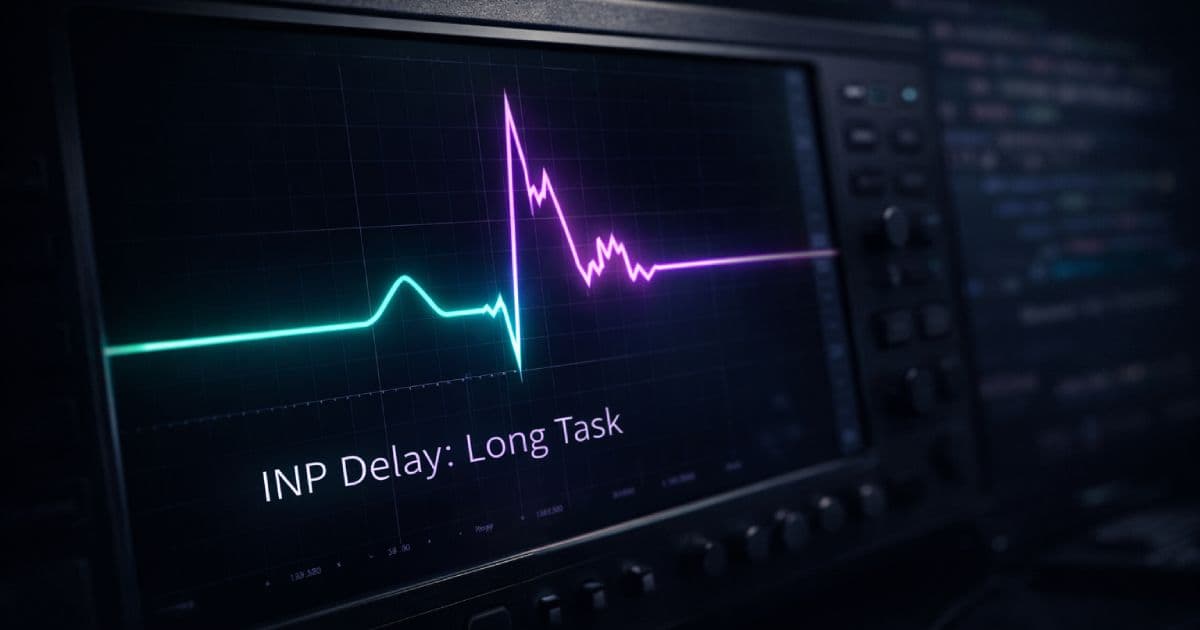
- Input delay — the time from when the interaction is received to when the browser begins running event handlers. This is driven by main-thread availability. If a long task is running when the user clicks, the interaction waits.
- Processing duration — the time spent running event listeners and any synchronous work they trigger. Heavy state updates, synchronous data operations, and large DOM mutations all extend this phase.
- Presentation delay — the time from when event handlers finish to when the browser commits the resulting frame. Expensive style calculations, large layout scope, and complex paint can all delay this.
A page's INP is the longest interaction latency observed during a visit, with a small percentile-based exclusion applied at high interaction counts to reduce the influence of extreme outliers. It is not an average. One unusually slow interaction can define the page's score.
Start with the macro view: where the problem actually lives
The first step in any INP investigation is confirming where in the site the problem exists and whether it is device-specific.
Search Console Core Web Vitals report
The Core Web Vitals report in Google Search Console groups URLs by template type — blog posts, product pages, checkout flows — and reports field INP for each group using CrUX data. This tells you which page categories have a problem and whether the issue skews toward mobile or desktop.
What it does not tell you: the specific interaction that is slow, the handler responsible, or any stack trace. It is a signal, not a diagnosis.
PageSpeed Insights and CrUX
PageSpeed Insights shows the CrUX field distribution for INP on a specific URL when enough real-user data is available. The 75th percentile INP value and the percentage of sessions in good, needs improvement, and poor bands are useful for understanding how severe the problem is and how it is distributed.
Again, this confirms severity and affected page types. It does not reveal the interaction, the event handler, or the bottleneck phase. Segmentation beyond page type and device class needs to happen in your own RUM or analytics pipeline.
Do not stop here
Field data first: capture the “what”
The most effective way to identify which interaction is causing poor INP in production is to instrument your pages with the web-vitals attribution build. The standard build tells you the INP value and rating. The attribution build adds the context needed to actually diagnose it.
import { onINP } from 'web-vitals/attribution';

onINP(({ name, value, rating, attribution }) => {
  const {
    interactionTarget,    // CSS selector for the element the user interacted with
    interactionType,      // 'click', 'keyboard', or 'pointer'
    inputDelay,           // ms waiting for main thread to be free
    processingDuration,   // ms running event handlers
    presentationDelay,    // ms waiting for the frame to paint
    longAnimationFrameEntries, // LoAF data, where supported
  } = attribution;

  // Beacon to your analytics or observability pipeline
  navigator.sendBeacon('/collect', JSON.stringify({
    metric: name,
    value: Math.round(value),
    rating,
    target: interactionTarget,
    type: interactionType,
    phases: {
      inputDelay: Math.round(inputDelay),
      processingDuration: Math.round(processingDuration),
      presentationDelay: Math.round(presentationDelay),
    },
    url: location.pathname,
    // add page template, release version, device hint here
  }));
}, { reportAllChanges: true });
A note on reportAllChanges: true: this option causes the callback to fire each time the INP value increases — meaning each time a new worst interaction is observed. It does not report every interaction. It reports the subset that updated the metric. For debugging, this is the right setting: you want to capture the interactions that are actually moving the score, not a sample of all interactions.
The interactionTarget field returns a CSS selector identifying the element the user interacted with. This is the single most important piece of attribution data for narrowing down which button, link, form field, or widget is responsible. Without it, you have an INP score and no direction.
What good RUM instrumentation should capture
A raw INP value sent to your analytics store is rarely actionable on its own. The following fields make it possible to group failures meaningfully and prioritize investigation:
- Page template or route type — which category of page the interaction occurred on
- URL pattern or pathname — specific enough to locate the page, without including session-specific parameters
- Device hint — screen size or user agent category to distinguish mobile from desktop patterns
- Interaction target selector — the element the user interacted with
- Interaction type — click, keyboard, or pointer
- INP value in milliseconds
- Phase breakdown — input delay, processing duration, and presentation delay individually
- Build or release tag — to correlate regressions with deployments
- Session or debug ID — optional, but valuable if your stack supports session replay or observability tooling that you can query alongside RUM data
The goal is to be able to answer: which element, on which page type, on which device class, and in which phase is the time going? A row with those fields is something a team can act on. A row with just a millisecond value is not.
Move from field to lab: reproduce the interaction
Once your RUM data surfaces a specific interactionTarget and interaction type, you have a concrete starting point for lab reproduction. The goal is to trigger the same interaction under conditions close enough to production to reveal the bottleneck.
Set up DevTools for INP investigation
- Open Chrome DevTools and navigate to the Performance panel.
- Enable CPU throttling — 4x or 6x slowdown brings fast developer hardware closer to mid-range mobile conditions where many real INP problems surface.
- Enable mobile emulation if the field data shows the problem is device-specific or if interaction targets are touch-optimized UI components.
- Use the Live Metrics sidebar in the Performance panel to see INP updating in real time as you interact. This gives immediate feedback on which interactions are slow without running a full trace.
- Once you identify the slow interaction with Live Metrics, start a full profiler recording, reproduce the interaction, stop recording, and inspect the trace.
Focus the trace inspection on:
- The Interactions lane — identifies each recorded interaction and its total duration
- The Main thread — shows long tasks as red-flagged blocks, with call stacks
- The Bottom-Up and Call Tree views — breaks down which functions consumed the most time
Note
The long-task hunt: finding the “why”
Once you have a profiler trace for the slow interaction, the investigation narrows to three questions corresponding to the three phases.
High input delay: what was the main thread doing?
Look for long tasks that completed just before the interaction begins in the trace. If the main thread was blocked by a script evaluation, a setTimeout callback, a requestAnimationFrame loop, or a third-party tag execution, the interaction had to wait in the browser's input queue until the task finished. The task responsible for the delay will appear in the main thread lane before the interaction marker.
High processing duration: what did the event handler do?
A long task that begins immediately after the interaction marker indicates the processing phase is the bottleneck. Expand the call tree inside that task to find the expensive work: heavy state update logic in a UI framework, synchronous iteration over a large dataset, DOM mutations that trigger forced reflows, or rendering the full component tree when only a subset needed to update.
High presentation delay: what did the frame work cost?
If the long task appears after the event handlers complete, the bottleneck is in the browser's rendering pipeline: style recalculation, layout, compositing, or paint. Look at the Rendering lane and any Layout or Recalculate Style tasks that follow the interaction. Large DOM trees, complex CSS selectors applied to many elements, or animations that trigger layout all contribute here.
Use LoAF attribution where available
The web-vitals attribution build can surface longAnimationFrameEntries — Long Animation Frame (LoAF) entries that overlap with the slow interaction. Where supported, this data identifies which script caused the long animation frame, including the invoker type, the source URL, and related timing information.
This is useful when your RUM callback receives LoAF data: you can log the source URL and invoker type alongside the INP value and send it to your analytics pipeline as an additional debugging signal. Combined with the phase breakdown and interaction target, LoAF attribution can help you narrow an investigation from “this interaction is slow” to “this third-party script is blocking the main thread at the moment this interaction fires.”
LoAF support is not universal across all browsers. The data is available only in environments that implement the Long Animation Frames API. Do not rely on it being present in all sessions, and treat it as a supplementary signal rather than a requirement for diagnosis. The phase breakdown from inputDelay, processingDuration, and presentationDelay is available more broadly and should be the primary attribution signal.
Common real-world INP culprits
The following patterns appear frequently in production INP investigations across a range of application types:
- Heavy framework state updates after a click. A button click that triggers a large React or similar UI-framework state update can cause the entire component subtree to reconcile synchronously, even when only a small portion of the UI actually changed. Reducing rendering scope — through memoization, component splitting, or deferred updates — directly addresses processing duration.
- Synchronous filtering or sorting on large datasets. Filtering a list of thousands of items on the main thread in response to a keypress or click accumulates quickly. Moving the computation off the main thread or throttling the interaction-to-computation path reduces both processing duration and input delay for subsequent interactions.
- Third-party scripts competing for main-thread time. Analytics tags, A/B testing frameworks, chat widgets, and ad scripts that evaluate or run callbacks during or just after page load create long tasks that delay processing of user interactions. See the related guide on how third-party scripts affect INP for a detailed breakdown of root causes and mitigation patterns.
- Layout thrashing. Code that reads layout properties (such as
offsetWidthorgetBoundingClientRect) interleaved with DOM writes forces the browser to recalculate layout synchronously on each read. This pattern can turn a single interaction into dozens of forced reflows. - Interactions fired while the page is still loading. Users frequently interact with pages that are still parsing scripts, hydrating, or running initialization logic. These background tasks create input delay because the main thread is occupied when the interaction arrives.
- Expensive style recalculation or paint scope. Triggering a class change on a top-level element that causes a cascade of style recalculations across a large DOM contributes to presentation delay even after the event handlers complete cleanly.
The replication cycle professional teams use
Across teams that debug INP systematically rather than reactively, the workflow tends to follow the same structure:
- Confirm the failing page group in Search Console or CrUX. Note whether mobile or desktop is worse and how the distribution breaks across the three rating bands.
- Capture interaction-level field data with
web-vitals/attribution. Log interaction target, type, phase breakdown, page template, and device class to a queryable data store. - Identify the specific slow interaction. Group field events by interaction target and page type. Find the element or flow that consistently produces high INP and which phase dominates the timing.
- Reproduce that interaction in Chrome DevTools. Navigate to the relevant page, apply CPU throttling appropriate to the device segment affected, and trigger the interaction identified in step 3.
- Inspect the profiler trace. Locate the long task or rendering bottleneck that corresponds to the phase identified in field data. Use the Bottom-Up and Call Tree views to find the responsible code path.
- Patch the bottleneck. Apply the appropriate fix — breaking up a long task, reducing rendering scope, deferring non-critical work, or addressing a third-party script contribution.
- Validate locally. Re-run the profiler trace to confirm the long task is gone or significantly reduced. Check Live Metrics for improved interaction responsiveness under throttling.
- Watch field data after release. INP improvements in field data typically appear within a few days as new CrUX data is collected. Monitor the affected page group in Search Console and in your RUM pipeline for trend improvement.
Fix patterns that actually lower INP
The fix depends on which phase is the bottleneck. Common patterns that produce measurable field improvements:
Break up long tasks and yield to the browser
If a long task is causing input delay or extending processing duration, breaking it into smaller chunks and yielding between them allows the browser to process pending user input between chunks.
Compare these two patterns:
// ❌ Blocking — processes all items in one long task
function processItems(items) {
  for (const item of items) {
    doExpensiveWork(item);
  }
  updateUI();
}

// ✅ Chunked with yield — browser can handle input between chunks
async function processItemsYielding(items) {
  const CHUNK_SIZE = 50;

  // Feature-detect scheduler.yield(); fall back to setTimeout
  const yieldToMain = typeof scheduler !== 'undefined' && scheduler.yield
    ? () => scheduler.yield()
    : () => new Promise(resolve => setTimeout(resolve, 0));

  for (let i = 0; i < items.length; i += CHUNK_SIZE) {
    const chunk = items.slice(i, i + CHUNK_SIZE);
    for (const item of chunk) {
      doExpensiveWork(item);
    }
    await yieldToMain(); // yield between chunks
  }

  updateUI();
}
scheduler.yield() is a more capable yielding primitive than setTimeout(fn, 0) — it preserves task priority and produces lower latency when supported. However, it is not available in all browsers as of early 2026. Always feature-detect before using it and provide the setTimeout fallback shown above.
Reduce rendering scope
When a click triggers a state update, ensure that only the components or DOM nodes that actually need to change are re-rendered. Memoize expensive subtrees, move state closer to where it is used, and avoid triggering full-tree reconciliation for interactions that affect a small portion of the UI.
Defer non-critical work
Work that does not need to be visible in the next frame — analytics logging, cache writes, background prefetches — should not run synchronously in the event handler. Defer it with requestIdleCallback, a scheduled task, or a setTimeout with a short delay so it does not extend processing duration or presentation delay.
Address third-party script timing
Third-party scripts that evaluate during or just after page load are a common source of input delay for first-interaction INP. Deferring non-essential tags, using async or defer loading, and applying trigger discipline in tag managers reduces the long-task footprint during the window when users first interact with the page.
Signal and tool comparison
| Signal / Tool | What it tells you | What it does not tell you | Best use |
|---|---|---|---|
| Search Console CWV report | Which page types have poor INP, mobile vs desktop split | Specific interaction, handler, or root cause | Initial triage and prioritization |
| PageSpeed Insights / CrUX | Field INP distribution for a specific URL or origin | Interaction details, phase breakdown, or handler identity | Confirming severity and tracking improvement over time |
web-vitals standard build | INP value and rating from real users | Which interaction, which phase, or what caused it | Baseline field collection and score trending |
web-vitals/attribution | Interaction target, type, all three phase timings, optional LoAF data | Full stack trace; deep profiler data; all browsers support LoAF | Production diagnosis — identifying the specific bottleneck type and element |
| Chrome DevTools Performance panel | Full trace of main thread work, call stacks, long tasks, rendering | Real user conditions; exactly matches field device variability | Lab reproduction and bottleneck isolation once the interaction is known |
From reactive debugging to earlier detection
Fixing a production INP problem is valuable. Not shipping it in the first place is better. A CodeAva Website Audit covers technical hygiene signals — metadata, HTTPS, crawl signals, and security headers — and is most useful as a pre-launch or post-deployment check to confirm that the basics are correct before digging into performance. It does not measure Core Web Vitals or INP directly, but catching obvious technical issues early means performance investigations can focus on actual interaction bottlenecks rather than fundamental configuration errors.
For INP specifically, the pre-launch investment that pays the most is adding the web-vitals/attribution instrumentation to your pages before you launch, so that field data is available immediately rather than weeks after a problem is noticed in Search Console.
Do not solve production INP with Lighthouse alone
web-vitals/attribution has to lead the investigation. Lighthouse and DevTools are useful for fixing a bottleneck once you know what you are looking for — not for discovering which bottleneck to fix.Conclusion and next steps
Poor INP in production is almost always solvable once you know which interaction is causing it. The challenge is that aggregate field scores — a 75th-percentile millisecond value from CrUX — do not tell you that. They confirm you have a problem and how severe it is. The actual diagnosis requires interaction-level attribution from real sessions.
The workflow that consistently works: confirm the problem in Search Console, capture interaction attribution with web-vitals/attribution, identify the slow interaction and the dominant phase, reproduce it locally with throttling, trace the bottleneck, fix it, and validate with field data after release. Each step reduces the search space. By the time you open the profiler, you are looking for one thing in one interaction, not debugging the entire page.
The teams that recover from poor INP fastest are the ones that have instrumentation in place before the problem is reported. Adding web-vitals/attribution now means the next Search Console flag comes with a diagnosis ready rather than triggering a blind investigation.
Where to start
Run a CodeAva Website Audit to confirm your pages are technically sound — correct metadata, HTTPS, crawl signals, and security headers — before going deep on interaction performance. Then follow the instrumentation and DevTools workflow above to isolate the specific INP bottleneck your users are experiencing. For detail on one of the most common production INP sources, see the guide on how third-party scripts hurt INP and how to fix it.