
Someone sends a QR code in Slack. Or it appears in a PDF, a confirmation email, an internal dashboard, or a setup wizard. You are sitting in front of a laptop. The QR code is already on your screen. The expected workflow is apparently to pull out your phone, point it at your monitor, squint through the camera alignment, hope it scans cleanly, then somehow get the result back to the device you were already using.
That workflow is broken. The QR code is an image. Your laptop can process images. The better solution is to take a screenshot, paste it into a decoder, read the payload, and stay on the device where you actually need the result.
TL;DR
- Take a screenshot or snip of the QR code on your laptop.
- Paste or drag the image into a local/browser-based QR decoder.
- Inspect the decoded URL or text before opening it.
- Avoid uploading sensitive QR codes (MFA keys, login sessions, payment links) to unknown third-party decoders.
- A desktop decoder is faster, cleaner, and often safer than pointing a phone at your monitor.
Already have the screenshot? Paste or drag it into the CodeAva QR Code Decoder and reveal the payload directly on your laptop. The tool processes the image locally in your browser using the jsQR library — nothing is uploaded.
Why the desktop workflow is better
The practical case for decoding QR codes on your laptop instead of your phone is simple:
- No device switching. The QR code is on your screen. The decoded result should be on the same screen. Bouncing to a phone and back adds friction to a process that should take five seconds.
- The result is immediately copyable. A decoded URL or credential on your laptop can be copied, pasted into a browser, saved to a password manager, or shared in a message — directly. On a phone, getting that result back to the laptop usually requires another manual step.
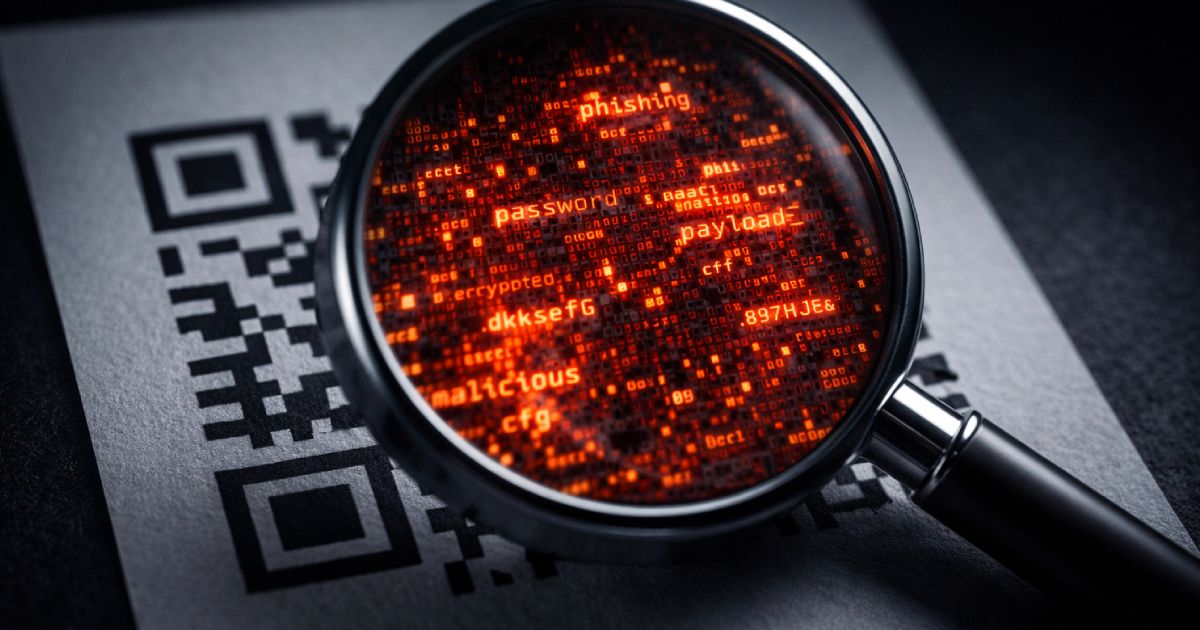
- You can inspect the payload before opening it. A desktop decoder can show the raw URL, text, or structured data without automatically opening it. Phone cameras typically auto-open the link, which is exactly what you should not do with an untrusted QR code.
- It works for every QR source already on screen. Emails, PDFs, Slack messages, browser tabs, internal dashboards, documentation — anything you can screenshot, you can decode.
The security warning: do not upload sensitive QR codes to random sites
Not all QR codes contain harmless website links. Some carry sensitive data that should not leave your device:
- MFA enrollment codes — the shared secret for TOTP apps like Google Authenticator or Authy
- Login session tokens — scan-to-login flows that authenticate a device
- Payment links — banking or crypto transfer requests
- Wi-Fi credentials — network name and password encoded in the QR
- Device pairing or provisioning links — MDM enrollment, IoT setup, app deep links
- Internal or private URLs — staging environments, internal tools, admin panels
If the decoder processes images server-side, the screenshot and its decoded payload are transmitted to a third party. For an MFA setup code, that means the shared secret — the one thing that is supposed to stay between you and the authenticator app — has been sent to an unknown server.
The safer default: use a decoder that processes images locally in the browser. The CodeAva QR Code Decoder runs the jsQR library entirely client-side. No image is uploaded, no frame is transmitted, and nothing is stored between sessions.
Sensitive QR codes need local decoding
Step-by-step: decode a QR code from a screenshot on desktop
Step 1 — Capture the QR code
Take a screenshot or snip of the area containing the QR code. Crop tightly around the code when possible — less surrounding noise means cleaner decoding.
- Mac: press Cmd + Shift + 4, then drag to select the QR code area. The screenshot is saved to your desktop and also copied to the clipboard on macOS Monterey and later.
- Windows: press Win + Shift + S to open the Snipping Tool, select the QR area. The snip is copied to your clipboard.
Step 2 — Open the CodeAva QR Code Decoder
Navigate to the QR Code Decoder in your browser.
Step 3 — Paste, drag, or upload the image
The tool supports three input methods:
- Paste from clipboard — press Ctrl + V (Windows) or Cmd + V (Mac) directly on the page. This is the fastest workflow when the screenshot is on your clipboard.
- Drag and drop — drag a saved screenshot file from your desktop or file manager onto the upload zone.
- File upload — click the upload area to browse for a saved image file.
Step 4 — Read the decoded payload
The tool decodes the QR code instantly and shows the raw payload — a URL, plain text, Wi-Fi credentials, contact card, or other data type. It identifies the payload type automatically and displays a structured parsed view with copyable fields.
Step 5 — Inspect before opening
For URL payloads, the tool shows risk signals: raw IP addresses, HTTP (non-HTTPS) links, URL shorteners, punycode hostnames, and unusual encoding. The tool never auto-opens links. Review the domain, check that it makes sense in context, and only open it manually if it looks legitimate.
Mac and Windows screenshot shortcuts
| OS | Shortcut | What it does | Where the image goes |
|---|---|---|---|
| macOS | Cmd + Shift + 4 | Area selection screenshot | Desktop file + clipboard (Monterey+) |
| macOS | Cmd + Shift + 3 | Full screen screenshot | Desktop file + clipboard (Monterey+) |
| Windows | Win + Shift + S | Snipping Tool area selection | Clipboard only (paste immediately) |
| Windows | PrtScn | Full screen to clipboard | Clipboard only |
For most QR decoding workflows, the area-selection shortcut with a tight crop around the code is the fastest path. Paste directly into the decoder without saving a file.
What to look for before you click
A decoded QR payload should be inspected before acting on it, especially if the source is not fully trusted. Check for:
- The actual domain name. Read the hostname carefully. A URL that looks like
https://your-bank.com.attacker.site/loginis not your bank — the real domain isattacker.site. - Lookalike characters and misspellings. Watch for swapped letters, homoglyphs (Cyrillic characters that look like Latin), and subtle additions like extra hyphens or subdomains.
- URL shorteners. Shortened links hide the real destination. If a QR code decodes to a
bit.ly,t.co, or similar short URL, consider expanding it before clicking. - Unexpected URI schemes. QR codes are not limited to HTTPS. Watch for
tel:,sms:,mailto:,data:, or custom app deep-link schemes. These may trigger actions your browser or OS handles automatically. - Context mismatch.A QR code on a restaurant menu should decode to the restaurant's domain. If it points somewhere unrelated, something is wrong.
For a deeper look at how malicious QR codes are used in phishing attacks, see the guide on what quishing is and how to inspect QR codes safely.
Native alternatives: what your OS may already support
Some operating systems and built-in apps can detect QR codes from images or screenshots, depending on the version:
- macOS— recent versions of macOS may detect QR codes in images viewed in Preview, Quick Look, or Photos through the system's text and visual recognition features. Availability and reliability vary by OS version and image quality.
- Windows — the Snipping Tool and Photos app in newer Windows versions may offer image-based recognition features, though QR-specific decoding is not always consistent or directly exposed.
- Google Lens / browser extensions — some browser-based image recognition services can detect QR codes from screenshots, but these typically transmit the image to a server for processing.
Native support is improving, but it is not uniformly available, and the behavior varies — some tools auto-open the URL instead of showing it for inspection, which is the opposite of what security-conscious users want.
When a dedicated decoder is better than native tools
A dedicated browser-based decoder is preferable when:
- You want the raw payload without auto-opening. Most phone cameras and some OS tools automatically launch the decoded URL. A dedicated decoder shows the text or URL first and lets you decide what to do with it.
- You need copyable, structured output. The CodeAva decoder parses Wi-Fi credentials, vCard contacts, email addresses, and other payload types into structured fields with individual copy buttons.
- You need URL risk signals. The decoder flags IP-based URLs, HTTP links, shorteners, punycode hostnames, and heavy encoding — none of which a phone camera or OS Quick Look will surface.
- The QR code is sensitive. Local-only processing means the image never leaves your browser. Native or cloud-based tools may transmit the image for server-side recognition.
- You need a consistent workflow across OS versions. A browser-based tool works the same way on any machine with a modern browser. Native support depends on the OS version and may change between updates.
Developer and QA use cases
Desktop QR decoding is not just for reading links from Slack. It is a practical part of development and testing workflows:
- Testing MFA enrollment flows. If your app generates TOTP setup QR codes, decoding them on desktop lets you verify the correct secret, issuer, and account name without scanning with a real authenticator app during every test cycle.
- Validating login and session QR codes in staging. Scan-to-login flows generate QR codes with session tokens. Decoding them on desktop lets QA verify the payload structure and token format without needing a phone and a second device.
- Checking generated QR codes during QA. If your system generates QR codes for tickets, boarding passes, payment requests, or product links, decoding the output verifies the encoded data matches the expected payload before shipping.
- Verifying deep-link and app-pairing payloads. QR codes used for device pairing, app provisioning, or deep-link routing carry structured data that needs validation during development. Desktop decoding exposes the raw content for inspection without a device-side SDK.
- Speeding up repetitive test cycles. During iterative testing, screenshot-paste-decode is faster than point-phone-scan-switch-device for every QR code your staging environment generates.
Common mistakes people make with QR codes on desktop
- Scanning the monitor with a phone. The QR code is already a digital image on your screen. Converting it to light, capturing it with a camera, and processing it on a second device is the longest possible path to the same result.
- Uploading sensitive QR images to unknown websites. If the decoder processes images server-side, the payload has been transmitted to a third party. For MFA codes, login tokens, and payment links, this is a real security concern.
- Clicking the decoded link without checking the destination. The whole point of decoding on desktop is the opportunity to inspect the payload. Clicking immediately without checking the domain defeats the purpose.
- Assuming every QR code contains a normal HTTPS URL. QR codes can contain Wi-Fi credentials, phone numbers, SMS triggers, geographic coordinates, cryptocurrency addresses, calendar events, and arbitrary text. The payload type matters.
- Using a full-screen screenshot when a tight crop would work better. A large screenshot with a small QR code in the corner may decode less reliably than a tight crop. Use the area-selection shortcut.
- Trusting an auto-open action without seeing the raw payload. Some tools open the URL immediately after decoding. If the QR code came from an untrusted source, you should see the payload before anything is opened.
Method comparison
| Method | Best for | Main risk | Convenience |
|---|---|---|---|
| Phone camera → laptop screen | Physical QR codes (menus, posters) | Breaks desktop workflow; auto-opens link on phone | Slow — two devices |
| Screenshot + local browser decoder | On-screen QR codes, sensitive payloads | None if processing is truly local | Fast — paste and read |
| OS-native image recognition | Quick decode if supported by your OS version | Inconsistent availability; may auto-open | Variable |
| Random online QR upload sites | Non-sensitive, throwaway QR codes | Image and payload may be sent server-side | Varies |
Safe desktop QR decoding checklist
- Capture a clean screenshot of the QR code. Use Cmd + Shift + 4 on Mac or Win + Shift + S on Windows. Crop tightly.
- Use a verified, trusted decoder. Prefer a tool you know and can verify processes images locally — not the first search result.
- Prefer local/browser-side processing. Especially for MFA codes, login tokens, payment links, and Wi-Fi passwords. If you are unsure whether a tool uploads images, do not use it for sensitive data.
- Decode the payload. Paste (Ctrl+V / Cmd+V), drag, or upload the screenshot. Read the raw result.
- Inspect the destination or text carefully. Check the domain, look for lookalike characters, watch for URL shorteners, and note any unexpected URI schemes.
- Copy the result only if it looks legitimate. If the payload is a URL, verify it makes sense in context before copying or opening.
- Open it only after checking context and domain. Do not click decoded URLs reflexively. The extra second of inspection is the difference between catching a phishing link and not.
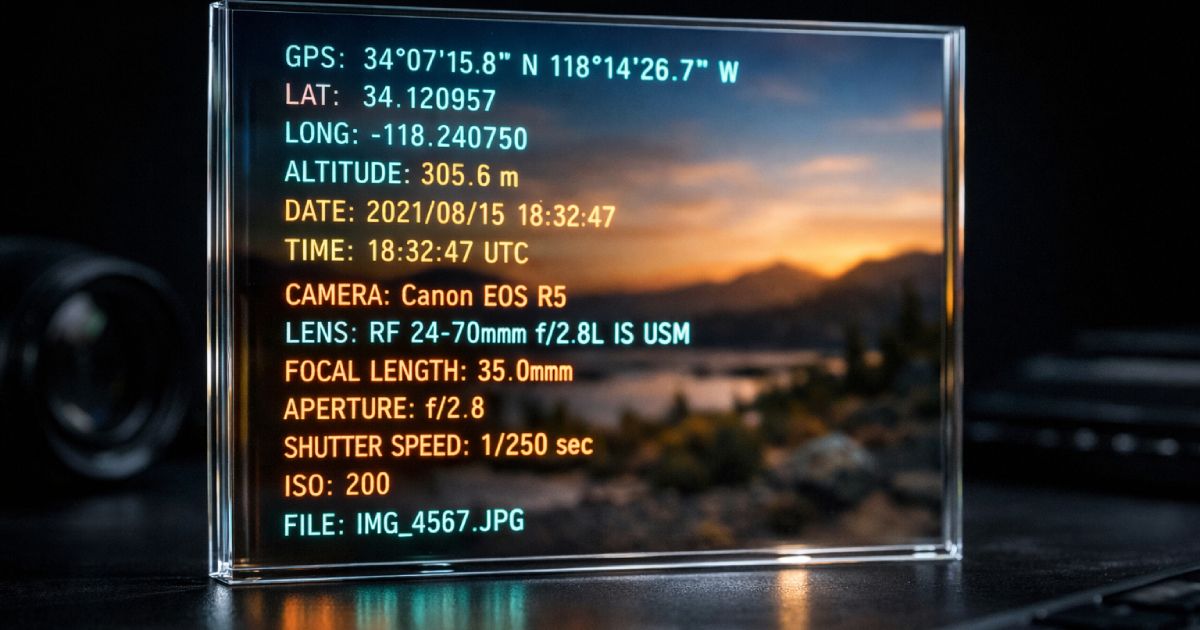
- Strip metadata before sharing the screenshot publicly. If you plan to share the screenshot itself (not the decoded result), consider stripping EXIF data first using the CodeAva EXIF Metadata Stripper to remove GPS coordinates, device info, and timestamps.
Solve it without leaving your browser
The CodeAva QR Code Decoder is built for exactly this workflow. Paste a screenshot from your clipboard, drag in a saved image, or upload a file. The tool decodes the QR code locally in your browser using the jsQR library — no image is uploaded, no data is stored, and no link is auto-opened.
The decoder identifies the payload type automatically — URL, Wi-Fi, vCard, MeCard, email, SMS, geo, crypto, or plain text — and shows a structured parsed view with individual copy buttons for each field. For URL payloads, a risk signal banner flags IP-based URLs, HTTP links, URL shorteners, punycode hostnames, and unusual encoding patterns.
It works on any device with a modern browser. For desktop users dealing with QR codes in emails, documents, Slack messages, and dashboards, the paste-from-clipboard workflow is the fastest path from screenshot to decoded payload.
Conclusion and next steps
The next time a QR code appears on your laptop screen, do not reach for your phone. Take a screenshot, paste it into a decoder, and read the payload on the same device where you need it. It is faster, it keeps you in your workflow, and it gives you the chance to inspect the payload before anything is opened automatically.
For sensitive QR codes — MFA setup, login sessions, payment links, Wi-Fi credentials — local processing matters. A browser-based decoder that never uploads the image is a meaningfully safer choice than an unknown online tool.
The workflow is simple: capture, decode, inspect, then act. The inspection step is the one most people skip and the one that matters most for security.
Decode it now
Open the CodeAva QR Code Decoder, paste your screenshot, and reveal the payload — locally, safely, and without leaving your browser. For more on how malicious QR codes are used in phishing, see the guide on what quishing is and how to inspect QR codes safely.